Modern editor tooling for the Alan interactive-fiction language — a language server (built with Xtext) plus a VS Code extension. It is the successor to the older Eclipse-RCP AlanIDE.
Alan IF, for the interactive-fiction Alan (
alan-if.github.io). It is not the M-industries Alan application platform — same name, different language.
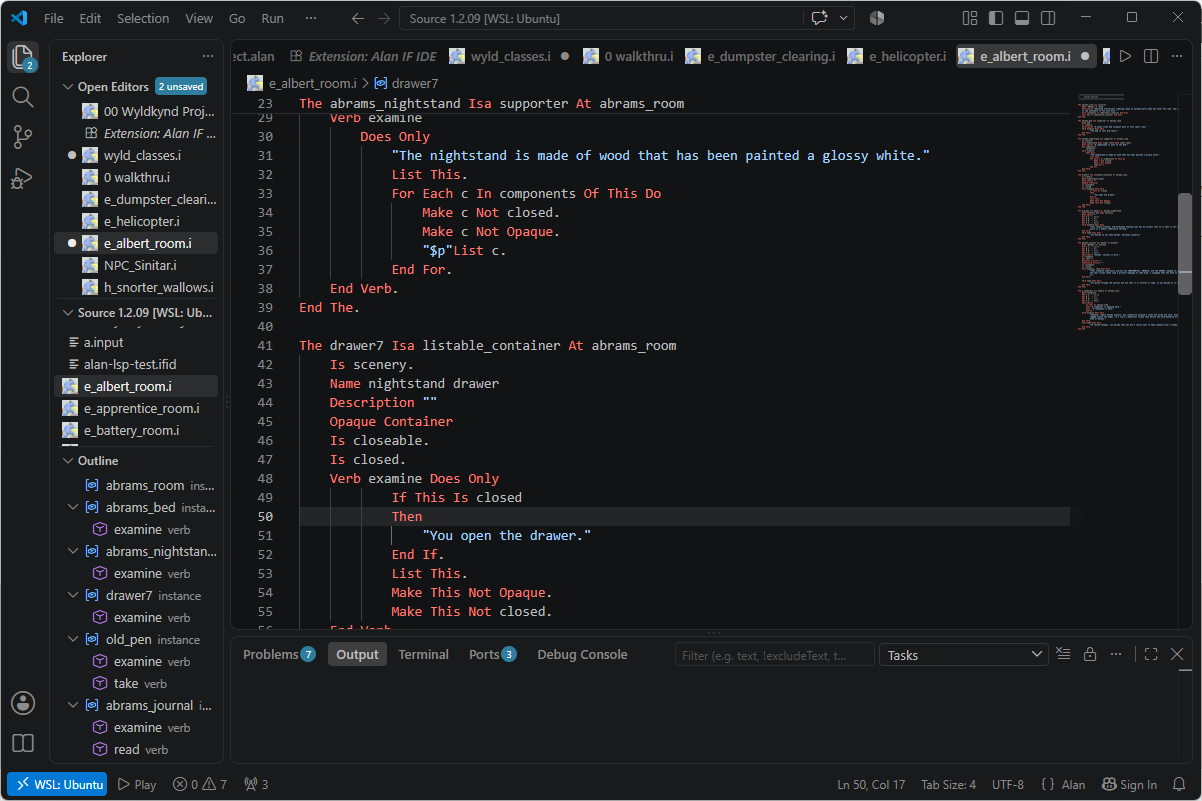
You can easily see, and activate, all Alan IF IDE features from the Command
Palette. Press Ctrl+Shift+P and type "alan if".
-
Syntax highlighting for
.alanand.ifiles. -
Document outline — classes, instances, additions, events, imports, verbs, syntax, scripts and synonyms, nested and with distinct icons.
-
Go to Definition (F12) — across files, and aware of what a name means. A loop variable resolves to its
for each,thisresolves to the enclosing class or instance. Everything else resolves by name across the project, and works from anywhere they appear -isa,locate,describe, exits, and so on. -
Go to Definition on a verb shows what decides its behaviour: the
syntaxthat says how the player phrases it, and all theverbin each class down the hierarchy that overrides it, ending where you are. -
Find All References (Shift+F12) — will show all occurrences of the item or symbol. It is scoped so it agrees with Go to Definition: inside a loop you get all uses of that loop variable. On a verb it lists every implementation.
-
Highlighting the name under the cursor, when on a symbol other occurrences in view is highlighted with the declaration marked slightly different.
-
Compiler diagnostics — continuous compilation, using the configured Alan compiler, shows any errors and warnings, on the error location in the editor view, and on a separate Problems tab for any, even multi-file, adventure (it compiles the main
.alanfile and shows each error in the correct file). -
Run / Play (▶) — compile the project and launch the game in an integrated terminal.
-
Format Document — a structure-aware indenter with optional keyword-case normalization; never reflows the interior of a string.
-
Re-wrap String (
Alt+Q, or right-click) — re-flows the string your cursor is in, or every string a selection touches, toalanif.format.stringWidth.$pand$nare laid out as the paragraph and line break they print as, so the source comes to look like what the player reads. Safe to use freely: whitespace inside an Alan string is collapsed by the interpreter, which wraps to the player's terminal, so how a string is laid out in the source cannot change what the game prints. -
Toggle Block Comment (
Shift+Alt+A, or right-click) — comments the selected lines out, and takes the comment away again. Alan's////delimiters are whole lines: the opening one has to stand in the first column, and the comment ends only at a line of slashes and nothing else. VS Code's built-in command puts its delimiters inline instead, which closes nothing and quietly swallows the rest of the file, so Alan files get this one. -
Convert Sources to UTF-8 — Alan sources in the older ISO-8859-1 show their accented text wrongly in the editor, and the compiler cannot read them at all, so the project goes quiet with no error to point at. The extension notices and offers the repair; it is lossless, and the game it builds is identical. An imported library outside the open folder is reported but never rewritten — that is its owner's call.
-
Set Up Spell Checking — the compiler is indifferent to a typo in the prose, and the prose is most of the game. This configures Code Spell Checker for Alan in your project's own folder: it checks string literals only, keeps
$pand$nfrom gluing to the next word, ignores the stems that$$builds words from, and feeds your game's own names — classes, instances,Nameclauses, synonyms, verbs, exits — into a generated word list so they are not underlined. On the 83-file Wyldkynd Project that is 178 unknown words down to 57, nearly all of them genuine. Choose the language your prose is written in; after that, saving an Alan file collects its names again, so renames take effect as you work. Re-run the command when something changed outside the editor, such as agit pull.Three things do the work, and naming them makes the rest obvious. The
cspell.jsonis the brief: it tells the checker where your prose is and which lists to trust. The concordance,alan-concordance.txt, holds your game's own names and is rebuilt from your sources on every save — never edit it. And a word that is genuinely yours, a surname or a dialect spelling, goes in with Add to dictionary to become your glossary, which lives inside the brief, travels with the game, and is never rebuilt over. Pick the option naming the project's owncspell.jsonwhen it offers you three.
If Alt+Q does nothing: the
Rewrap extension
binds the same key for every language, so it may be bound to that rather than to the
Alan IF IDE. The command is always available from the right-click menu and the Command
Palette (Ctrl+Shift+P). The Rewrap extension does nothing at all with an Alan file —
which looks like a broken feature. If so, Alan IF IDE will offer to settle it the first
time you re-wrap a string; say yes and it writes the binding below into your
keybindings.json. Alan IF: Bind Alt+Q to Re-wrap String does the same thing
later, if you dismissed the offer. To do it by hand instead — a user keybinding beats any
extension's:
{
    "key": "alt+q",
    "command": "alanif.rewrapString",
    "when": "editorTextFocus && editorLangId == alanif"
}
Alt+Q in an Alan file will then go to Re-wrap String, and every other type of file
stays with Rewrap.
- Java 21+ — the language server runs on the JVM. The platform-specific builds
bundle a trimmed runtime, so authors need install nothing; the platform-neutral
build uses
alanif.java.home, thenJAVA_HOME, thenjavaon yourPATH. - The Alan compiler (
alan, 3.0beta8) — for diagnostics and Play. Setalanif.compiler.path, or havealanon yourPATH. Without it, editing features still work; diagnostics are simply skipped. arun— the Alan interpreter, for Play. Found next to the compiler, or onPATH.
Search for "Alan IF IDE" in the Extensions view and click Install. That works in VS Code, and in VSCodium, Gitpod, Cursor or anything else built on Open VSX — the extension is published to both registries. The build for your platform is chosen automatically and bundles a Java runtime, so there is nothing else to install.
Or import the author profile — alanif.code-profile
from the release page. It installs this extension and a calmer, prose-oriented editor
set up for writing adventures rather than code: no minimap, no breadcrumbs, word wrap on,
and the enclosing every X or verb Y kept in view while you scroll. Import it with
File → Preferences → Profiles → Import Profile….
If you would rather install a file directly — for an older version, or on a machine without marketplace access — every release also carries the packaged extensions:
- Download the
.vsixfor your platform from the Releases page, e.g.alan-if-ide-win32-x64-<version>.vsix. These bundle a Java runtime; the unsuffixedalan-if-ide-<version>.vsixdoes not, and expects Java 21+ of your own. - Press Ctrl+Shift+P (Cmd+Shift+P on a Mac), type
vsix, and choose Extensions: Install from VSIX…. Then pick the file you downloaded. - Reload the window when prompted.
| Setting | Purpose |
|---|---|
alanif.compiler.path |
Path to the Alan compiler (else found automatically). |
alanif.arun.path |
Path to arun (else next to the compiler, or on PATH). |
alanif.mainFile |
The .alan file to compile and Play (else auto-detected). |
alanif.format.keywordCase |
off (default) / lower / upper / capitalize. |
alanif.format.stringWidth |
Column Re-wrap String wraps before (default 80). |
alanif.java.home |
JDK/JRE 21+ home (else the bundled runtime). |
Every one of these can be left empty; clearing a path setting always returns to finding the tool automatically. Alan IF: Check Setup (Command Palette) reports what was found and where, and the language status bubble in the status bar shows the same while an Alan file is open. Alan IF: Locate Alan Compiler… and Alan IF: Locate Alan Interpreter… browse for either one instead of typing a path.
The language server is a plain LSP server — java -jar alan-lsp.jar, speaking over
stdio — and knows nothing about VS Code. Configure it through the environment of
the process you launch:
| variable | meaning |
|---|---|
ALAN_COMPILER |
Path to the Alan compiler. Omit and the server tries alan on PATH. |
ALANIF_KEYWORD_CASE |
off / lower / upper / capitalize for Format Document. |
The server also has code to read the same two settings from LSP
initializationOptions (compilerPath, keywordCase) — the more idiomatic channel,
and the intended one — but that code never runs, so today the environment is the only
thing that configures it.
The jar is inside any release VSIX (a .vsix is a zip) at extension/server/alan-lsp.jar,
or ./build.sh produces it. It needs Java 21+.
Starting points for three clients — untested by us, so corrections are welcome:
;; Emacs, eglot
(setenv "ALAN_COMPILER" "/usr/local/bin/alan")
(add-to-list 'eglot-server-programs
             '(alan-mode . ("java" "-jar" "/path/to/alan-lsp.jar")))
-- Neovim 0.11+
vim.lsp.config('alanif', {
cmd = { 'java', '-jar', '/path/to/alan-lsp.jar' },
cmd_env = { ALAN_COMPILER = '/usr/local/bin/alan', ALANIF_KEYWORD_CASE = 'off' },
filetypes = { 'alan' },
})# Helix, languages.toml
[language-server.alan-if]
command = "java"
args = ["-jar", "/path/to/alan-lsp.jar"]
environment = { ALAN_COMPILER = "/usr/local/bin/alan", ALANIF_KEYWORD_CASE = "off" }Two things do not travel. Syntax highlighting is a TextMate grammar that only VS Code
reads, so other editors need their own until the server offers semantic tokens. And
Play is a VS Code command, because only the client can host an interactive terminal —
elsewhere, run arun yourself.
A plain Maven-Central build (no Tycho). Needs JDK 21, Maven, and Node 20+
(vsce, which packages the extension, requires it).
./build.sh                                    # server jar + compiled extension
cd vscode-extension && npx vsce package       # packages the .vsix
build.sh deliberately does not build the bundled Java runtime — the dev loop falls
back to java on your PATH, so paying for it on every build would be waste. To
produce a platform build the way CI does:
cd vscode-extension
./build-jre.sh                                # jlink a runtime for this machine
npx vsce package --target linux-x64
build.sh runs the Xtext generator (MWE2), builds the language server, stages its jar
into the extension, and compiles the TypeScript. reload.sh does all of that, packages
the .vsix, and installs it into your local VS Code.
se.alanif.alan/— the language runtime: grammar (Alan.xtext), the generated ANTLR parser + EMF model, and hand-written services (validation, scoping, formatting).se.alanif.alan.ide/— the LSP server and its Alan-specific service overrides (navigation, outline, formatting).vscode-extension/— the VS Code client (thin: launches the server, ships the grammar, icon, and Run/Play command).
The Xtext grammar was bootstrapped from the Alan compiler's own grammar
(alan.pmk) via tools/pmk2xtext.py, then hand-authored from there;
grammar-baseline/ snapshots the compiler grammar at handoff so later drift can be
audited.
MIT © Thomas Nilefalk.