
Ghostty with a Chrome-style vertical tab sidebar: one window, one Dock icon, every Claude Code session as a tab, coloured by status (needs you, running, finished, idle, shell) and sorted by name so rows stay put. Give a session one of 20 colours and its row and terminal both take it. Ctrl-Opt-J jumps to the next session waiting for you.
Help: cloudscale.consulting/ghostty-dock (also Help → Ghostty Dock Help, ⌘?).
You need a Mac with Apple silicon (M1 or newer) and macOS 13 or later.
-
Open Terminal (press Cmd-Space, type
Terminal, press Return). -
Paste this line and press Return:
curl -fsSL https://raw.githubusercontent.com/andrewbakercloudscale/ghossty-dock/main/get.sh | bash -
Ghostty Dock opens by itself. It is in
~/Applicationsfrom then on.
- It downloads the latest release, installs it and opens the app. Nothing is built, and macOS does not ask before opening it.
- macOS 15 and later include everything it needs. On macOS 13 or 14, run
brew install jqfirst. - No Claude Code yet?
curl -fsSL https://claude.ai/install.sh | bash - To update: About → Update, or paste the line again.
- To remove:
bash ~/.local/share/ghostty-dock/install.sh --uninstall && rm -rf ~/.local/share/ghostty-dock - About → Share with a friend (or Help → Share Ghostty Dock with a Friend…) sends the install line by Messages, WhatsApp, Mail or AirDrop.
Needs Xcode (for swift and xcodebuild); the build fetches Ghostty and zig itself.
git clone https://github.com/andrewbakercloudscale/ghossty-dock.git && cd ghossty-dock
./install.sh                     # hooks, opener, Finder Quick Actions, app
scripts/build-terminal.sh        # rebuild the app only
ghostty-dock-move --detach       # move sessions from separate Ghostty apps into tabs
Ghostty 1.3.1 needs Zig 0.15, which can't link against some newer macOS SDKs
(every libSystem symbol comes back undefined). The build then retries against
the newest older SDK it finds. If there is none, install Command Line Tools
for an earlier Xcode from developer.apple.com, or name one:
GHOSTTY_DOCK_SDK=/Library/Developer/CommandLineTools/SDKs/MacOSX26.sdk ./install.sh.
The prebuilt release (get.sh) needs none of this.
scripts/release.sh               # build/release/Ghostty-Dock-<version>.zip
scripts/release.sh --publish     # and a GitHub release with it
The zip holds the app, the scripts and install.sh, which installs the
ready-built app instead of building one. With DEVELOPER_ID (a "Developer ID
Application" certificate) and NOTARY_PROFILE (xcrun notarytool store-credentials) set, it is signed and notarized and opens anywhere;
without them it is signed for this Mac only, and other Macs must allow it in
System Settings → Privacy & Security first (get.sh downloads with curl,
which macOS does not quarantine, so it opens either way). Installed from a
release, Update checks GitHub's latest release and installs it with get.sh.


It is Ghostty 1.3.1 plus patches/ghostty-dock.patch, built as
~/Applications/Ghostty Dock.app. A Claude Code hook (bin/ghostty-dock-hook)
reports each session's status.
| Icon | Colour | Means |
|---|---|---|
| ? (pulsing) | peach | needs you: a question or permission prompt |
| ✓ | blue | finished, not looked at yet |
| moon | mauve | idle |
| spinning arrows | green | running |
| terminal | teal | plain shell, no Claude Code |
-
Under "Sessions", a counter per state (needs you, running, finished, idle, shell, and undocked when there are any) shows how many tabs are in it.
-
Click a row to switch to it; ✕ closes it; + opens a new tab.
-
Each row shows its status, how long it has been in it, and context size (e.g.
168k ctx: the tokens its last reply read, so you can see which sessions are near compaction). -
Compact (⤡, above Restart; or right-click → Compact (Pauseless)) types
/compact-asyncinto the session, so Claude Burst's Pauseless Compaction summarises it in the background and swaps the summary in with your next prompt. Only while the session is at its prompt (finished or idle), so it never answers a question or queues behind a running turn. Needs Claude Burst: without it the button offers to set it up (see below). -
Restart (↻, beside Undock; or right-click → Restart Session) stops claude and resumes the same session in a fresh tab at once. Same as
ghostty-dock-move --restart <session id>. -
Drag the sidebar's right edge to make it wider or narrower (double-click the edge to reset).
-
Click a row's Undock icon (↗, beside ✕; or right-click → Undock) to move that session out to its own Ghostty window: claude is stopped and resumed there at once.
-
Undocked: Claude Code sessions in their own Ghostty windows are listed under the tabs, grey with a dashed outline. Click one to show its window, or its Dock icon (↙) to restart it in a tab here at once. Same as
ghostty-dock-move --pid <pid>,--undock <session id>,--detach. -
⌘⇧J (Ctrl-Opt-J from any app): jump to the next session that needs you (then finished ones).
-
The window title (the session's name) sits in the middle of the title bar.
-
Dock badge: how many sessions need you.
-
What it's waiting on: a row that needs you shows the question, or the tool call to allow ("Allow Bash: npm test"), so you know before you switch.
-
Answer without switching: a permission has Allow and Deny under it, and a single-choice question one button per choice. The notification has the same buttons (hover it, or Options). A button only answers the wait it was drawn for, never a newer prompt.
-
Two sessions in one folder each show "Same folder as …" in orange, as both can edit the same files. Click it, or right-click → New Session in a Worktree…, for a session in its own copy of the repo (
claude --worktree <name>: a new branch in.claude/worktrees/<name>). -
History (the bar at the foot of the sidebar): sessions closed in the last 3 months; click one to reopen it. Its search matches names, folders and, from three letters, what was said in them, with the line it was said in. Open sessions it was said in show under "Open now"; click to go there.
-
Cost: each row ends with what the session has cost so far, subagents included, priced like the Cost Sidebar below. Off in Settings.
-
Branch, pull request and ports: a line under each row like
main ↑2 ●3 · #42 · :3000(commits not pushed, files changed, the open PR viagh, ports the session's processes listen on). Right-click to open the PR or the port. Off in Settings. -
A glowing ring around a row that needs you.
-
Notifications when a session needs you or finishes, unless you are looking at it. Click one to go to its tab. Each can be turned off. The 🔔 in the header lists the last 200; going to a session marks its ones read.
-
The tab you are in has a gold ring; other running sessions have a chrome one. A glint runs round the ring while the session works.
-
Esc stops a turn: Claude Code runs no hook when you interrupt it, so the Dock reads the transcript and shows the session as idle within a few seconds.
-
Header buttons each have their own colour; point at one and the counters line says what it does, so no tooltip covers a button.
-
Loading screen at startup: a turning gold ring and "Loading…" with how many sessions are back, until they all are (Skip to dismiss).
-
Filter by state: click a counter under the header (needs you, running, finished, idle, shell) to show only those sessions; click it again to show all.
-
Find (⌘P or the magnifier): type part of a name, folder or question; ↑↓ and Return. Closed sessions are in the list too.
-
Agents (⌘⇧A or the 👥 button): the 👥 button turns green with a count while your sessions' agents are running. Four tiles at the top (spending now, today, agents running, sessions that need you; click that one to go to it), then Agents used today: each session that used agents today, how many and what they cost, most first (click one to go to it), then Background runs today:
claude -pruns with no tab (git hooks, scripts, compactions) by project, with their agents and cost, then every subagent your sessions have started, one row each, grouped by session: what it is doing, type, model, tool calls, tokens, cost and how long ago. Busy sessions without agents show as "working on its own". Live, Today or All at the top right; point at a row for the token breakdown, click it to go to its session. (An agent is a helper a session starts with Claude Code's Agent tool: its own context, often in the background or its own worktree.) The ? explains how to prompt for them (say subagents, parallel, background or worktree) and how to make your own (/agents or .claude/agents/*.md). Set Up lists every agent Claude Code can start (yours in ~/.claude/agents, each open project's .claude/agents, the plugins' and the built-in ones) with how often each ran, and lets you change yours: the description Claude chooses by, model, colour, tools, tools it may not use and its instructions. New agent (+), Duplicate as Mine (to customise a plugin's), Open in Editor, Move to Trash. Find Agents (third tab, or the button at the top of Set Up) has 647 ready-made agents from Plexiform's catalogue by Callum Baker: four MIT collections (agency-agents, VoltAgent, wshobson, 0xfurai), pinned and hash-checked, with risky instructions flagged. Search or pick a kind, tick the ones you want and press Install (Return): they go to ~/.claude/agents, or one open project's .claude/agents. Each shows what it does, a warning if it can run commands or use every tool, its instructions, and how to use it: "Use the code-reviewer agent to …" (Copy), or Start a Session as It (claude --agent <name>in a new tab). Remove puts it in the Trash. Installed files are as their authors wrote them, named by their slug and with dated model ids swapped for sonnet/opus/haiku.scripts/import-agent-catalog.pyrefreshes the catalogue from a Plexiform checkout; licences are in Resources/agent-catalog. A Spend line shows how fast money is going across every open session, agents included:$/hr now (last 10 minutes), last hour, today's average $ /hr, today, and tokens a minute.


New to agents? See Agents: getting started.
-
Daily Recap (⌘⇧Y or the 📅 button): what the day's sessions did. Tiles for spend, how long Claude worked, prompts, sessions, files changed and commits, then one card per repo (sessions in its subfolders and worktrees count toward it), most spent first: each session by its first prompt (click to go to it, or reopen it if closed), the files Claude edited, and your commits that day on any branch. ‹ › step back through earlier days. Read from the transcripts and git when it opens; nothing is tracked.
-
Reopen closed (⌘⇧T): within a few seconds Ghostty brings the tab back as it was; after that, the session is resumed in a new tab with its old flags.
-
Right-click a row to rename it, pin it to the top or give it a colour. These stick to the session, across restarts.
-
Colour a session with the 🎨 header button, right-click → Colourise (pick straight from the menu) or right-click → Colour…: 20 colours that sit well together. Its row is tinted in it and its terminal's background takes a little of it, so you can tell at a glance which session you are typing in. None takes it off.


-
Drag rows by the ⋮⋮ grip on their right to put them in your own order (the sort becomes "As you drag them"), or right-click → Move Up / Move Down.
-
Groups (Settings): fold rows under their folder (the project's parent folder) or their colour. Click a heading to fold it; a folded group still shows how many need you. Right-click a heading → Rename Group… to name it after a client or project (group by colour, then colour each project's sessions alike); Use the Default Name puts it back.
-
Mark as Unread (right-click an idle session) shows it as Finished again, to come back to; it reads when you go to it or when it does something new. A finished one has Mark as Read.
-
Overview (⌘⇧O or the ▦ button): every session on one screen, needs you first. Each tile shows its status, cost, the question it is asking and the last lines of its screen, with Allow/Deny or the choices for a question, or a Reply box that types into it and presses Return (while it runs, the message queues). Click a tile's name to go to its tab. Needs you or finished hides the rest.
-
Old login: after you log in to Claude as someone else, sessions started before still use the old account (Remote Control goes quiet). The sidebar says how many; Resume Them… resumes each in a fresh tab with its flags, so
--remote-controlkeeps its name.


An agent is a helper with its own instructions that a Claude session can hand work to. The Agents window (⌘⇧A, or 👥 at the top of the sidebar) has three tabs: Activity shows what agents are doing and what they cost, Set Up shows the agents you have, and Find Agents has 647 ready-made ones.
- Find one. Open Agents → Find Agents. Type what you need (reviewer, react, security, sql…) or choose a kind from All kinds. Click a row to read what the agent does, whether it can run commands, and its full instructions.
- Install it. Tick the agents you want. Under Install to, choose
Every project (
~/.claude/agents) or one open project (<project>/.claude/agents), then press Install (or Return). Installed rows get a green tick. - Use it. In any session, ask for it by name, for example "Use the
code-reviewer agent to review my last commit". The agent's detail shows
that line with a Copy button. Or use Start a Session as It to
open a new tab running
claude --agent <name>, where the whole session is that agent. - Watch it. Activity lists each agent as it runs: what it is doing, its model, tool calls, tokens and cost. Click a row to go to its session. While agents run, the 👥 button turns green and shows a count.
- Change it. In Set Up, pick an agent to edit its description (which Claude uses to decide when to call it), model, colour, tools and instructions. Duplicate as Mine copies a plugin's agent so you can change it. + makes a new one, and Move to Trash removes one.
Sessions start in the folder they were opened in, so an agent installed for one project is only offered there. Agents for every project are offered everywhere. Installed files are as their authors wrote them, so read the instructions before you install, especially when the agent is flagged as able to run commands.
| Keys | Does |
|---|---|
| ⌘1 – ⌘8, ⌘9 | Go to that session in the sidebar, or the last one |
| ⌃⇥ / ⌃⇧⇥, ⌘⇧] / ⌘⇧[ | Next / previous session, in the sidebar's order |
| ⌘⇧J (⌃⌥J from any app) | Next session that needs you, then finished ones |
| ⌘⇧R | Restart this session |
| ⌘⇧U | Undock this session to its own window |
| ⌘⇧S | Show or hide the sidebar |
| ⌘P | Find a session by name, folder or question |
| ⌘⇧A | Agents across all sessions |
| ⌘⇧O | Overview: every session on one screen |
| ⌘⇧Y | Daily recap |
| ⌘⇧T | Reopen the last closed session |
| ⌘⇧B | Show or hide this tab's browser |
| ⌘⇧E | Show or hide this tab's file viewer |
| ⌘-click a file name | Open it in the file viewer (web links open as before) |
While the sidebar is hidden, ⌘1–9 and the next/previous keys are Ghostty's own again (tab order). Everything else in Ghostty (⌘T, ⌘W, splits) is unchanged. Double-clicking the title bar zooms the window; ⌥-double-click a tab to rename it, or use its right-click menu.
In Finder: right-click a folder → Quick Actions → Launch Claude Code
in Ghostty or Continue last Claude Code session in Ghostty opens it as a
tab. install.sh adds both if they are missing. Settings → Shortcuts → In
Finder gives each a key (Add Shortcut, Remove Shortcut), with a picture
of the menu.
⌘⇧B opens a Chromium browser beside the tab's terminal, for watching the app a session is building. Each terminal tab has its own, with tabs of its own: + for a new one, × on a tab to close it, and links that open a new tab or window open as one. Drag its left edge to resize it.
Web links open there too, as a new tab with the browser shown: a link you
⌘-click in the terminal, one you click in Claude Code, a web link in a file
in the viewer, and a page a program opens, such as Claude Code's /login.
Ghostty Dock sets $BROWSER in its terminals to ghostty-dock-browse,
which Claude Code, gh and Python's webbrowser follow; it falls back to
your usual browser when the app does not answer. A $BROWSER Ghostty Dock
was started with is kept. ghostty-dock url <url> opens a page from a
script.
⌘⇧B again hides it, and its pages keep running out of sight. The × at the end of the address bar closes the browser and all its tabs. Chromium starts the first time a browser opens, and its shared helpers run until Ghostty Dock quits.
Every Claude Code session in a Ghostty Dock tab knows it is there and can
drive it. install.sh adds the dock-browser tools for every Claude Code
(claude mcp add --scope user dock-browser), which run chrome-devtools-mcp
against the browser's debugging port, 127.0.0.1:9223 (not Chrome's usual
9222, which a Chrome of your own may hold). They start the browser beside
the session's tab the first time Claude uses them, so a session that never
needs a browser does not start one. And a SessionStart hook
(ghostty-dock-context) tells each session in a dock tab about the browser
and its tools; elsewhere it says nothing. They need Node.js.
Clicks and screenshots work on tabs you are not looking at, and while the
browser is hidden. A page Claude opens (new_page) appears as a tab in its
own terminal tab's browser; one it closes loses only its tab. Pages never
take the keyboard from the terminal when they load: only clicking in a page
does. Claude sees the pages of every terminal tab's browser on the one port,
and is told to keep to its own.
⌘-click a file name in a terminal, such as the plan.md Claude Code just
wrote, and it opens beside the terminal, left of the browser:
- Markdown is rendered, with tables, task lists and highlighted code blocks.
- Source and text files show with line numbers and highlighting, and are
never run: a ⌘-clicked
.shused to offer to run it in Terminal. - Images and PDFs show as they are.
- HTML files, web links and anything else open in their usual app, as before.
It reloads as the file changes, keeping your place. Each file is a tab; ⌘-click an open one to bring it to the front. ⌘⇧E hides and shows it, and the bar has reload, Show in Finder, open in its usual app, and × to close it and its files. Drag its left edge to resize it.
⌘-click works in Claude Code too, though it has the mouse: Ghostty Dock
looks for links whenever ⌘ is held, which no program sees. A name relative to
the terminal's folder works. ghostty-dock view <file> opens one from a
script, and every Claude Code session in a dock tab is told it can show you a
file this way.
ghostty-dock drives the running app, for scripts and other agents:
ghostty-dock list                                 # status, name, branch, ports, cost, id
ghostty-dock focus aws-cli                        # go to its tab
ghostty-dock send aws-cli "run the tests" --enter # type into it
ghostty-dock keys aws-cli esc ctrl-c              # press keys
ghostty-dock read aws-cli --lines 20              # what is on its screen
ghostty-dock wait aws-cli 'passed|failed' --timeout 600
ghostty-dock notify "Deploy done" "prod is on 1.4.2"
ghostty-dock open ~/code/repo --command claude    # a new tab
ghostty-dock browser --show                       # start this tab's browser and show it
ghostty-dock url http://localhost:3000            # open a page in this tab's browser
ghostty-dock view docs/plan.md                    # show a file in this tab's viewer
A session is named by its session id, its name in the sidebar, its folder or
the start of its name. Requests go through files in
~/.local/state/ghostty-dock/api, a folder only you can open.
Settings → Theme picks one of 20 (Catppuccin Mocha, Macchiato, Frappe and
Latte; TokyoNight Storm, Night and Day; Dracula; Nord; Gruvbox Dark and Light;
Rose Pine and Rose Pine Dawn; Kanagawa Wave; Everforest Dark Hard; One Half
Dark; GitHub Dark and Light; Monokai Pro; Solarized Light). The terminal and
the sidebar change together, in every window. The default follows the theme
in your Ghostty config. Your Ghostty config is never edited: the choice is
written to ~/.local/state/ghostty-dock/theme.conf, which only Ghostty Dock
loads.

Five tabs: Sidebar (with Compaction), Theme, Notifications, Shortcuts and App.
| Setting | Default | What it does |
|---|---|---|
| Show the sessions sidebar | on | The tab list on the left. Off gives you plain Ghostty tabs. |
| Sort | Alphabetical | Alphabetical: by name, rows never move. Needs you first: needs you, then most recently idle, running last. Running first: running, then needs you, then idle. Tab order: as the tabs are arranged. As you drag them: your own order; dragging a row switches to it. |
| Groups | No groups | Fold rows under their folder (the project's parent folder) or their colour. Pinned rows get a group at the top. |
| Show what each session has cost | on | The $ figure at the end of each row's status line. |
| Show git branch, pull request and ports | on | The line under each row's status. |
| Also show Ghostty's tab bar | off | Ghostty's own tab strip along the top, as well as the sidebar. |
| ⌃⌥J jumps to the next session that needs you | on | A global hotkey, from any app. With none waiting it goes to the next finished one. |
| Dock icon shows how many sessions need you | on | The red badge on the Dock icon. |
| Notify me when a session needs me / finishes | on | macOS notifications, not for the session on screen. If Claude Code already notifies you through the terminal, turn one off. |
| Bring the window to the front when a session needs me / finishes | off | Un-minimises Ghostty Dock and shows that session's tab, over whatever app you are in. Never while you are already looking at Ghostty Dock, so it can't switch tabs as you type. It waits until you have not typed or moved the mouse for 10 seconds, then a note at the top of the screen says it is coming up in 3 seconds (Show now, Not now; typing puts it off again). The window then fades in as it rises into place over about a second and a half. |
| …only once no session is running | on | Holds the window back until every session is idle or waiting on you, so it comes up once, when there is nothing left to wait for. |
| Reopen Claude sessions when Ghostty Dock starts | on | The app records its open sessions every 10 seconds; after a quit, crash or update they come back as tabs with claude --resume. Sessions already running elsewhere are skipped. |
| Keep tabs running when Ghostty Dock quits | on | Every tab runs in a small holder (ghostty-dock-hold, inside the app) instead of in the app itself. Closing a tab ends what runs in it, as usual; a quit, crash or restart does not. Shells, dev servers and Claude sessions carry on, and the next app reattaches a tab to each, replaying the last 4 MB of its output so scrollback and search still work. Applies to tabs opened after you change it. |
| Open Ghostty Dock at login | off | Adds it to macOS Login Items. |
| Version / About and Updates… | The version, and an Update… button when GitHub has something newer. | |
| Edit Ghostty Config… | Fonts, colours and keys live in Ghostty's own config file. |
The sidebar width is set by dragging its edge, not here. The settings are
ordinary macOS defaults (defaults read consulting.cloudscale.ghosttydock).
About is the last tab of Settings (⚙︎ at the top of the sidebar, or Ghostty
Dock → About Ghostty Dock, Help → About Ghostty Dock, or Check for Updates…). It shows the version
(1.0.<commits> and the commit it was built from), who made it, and links.
It checks GitHub 5 seconds after launch and every 6 hours; when there is
something new, an Update button appears there, in Settings and at the top
of the sidebar, and the sidebar's ⚙︎ turns green and flashes (click it for About). Update runs scripts/update.sh --install in the clone the app
was built from: pull, rebuild, install, then restart once your sessions are
quiet (they are resumed as tabs). Log: ~/.local/state/ghostty-dock/update.log.
The Restart button (↻) is always at the top of the sidebar; it turns
into a filled green circle when a newer build is installed under the running
app (for example after scripts/build-terminal.sh --no-open). It asks first, then restarts once
no session has been busy and you have not typed for 10 seconds (a key press
starts the 10 seconds again), and reopens them as tabs. While it waits, a
flashing red ⏳ replaces the Restart button and an orange line under the
header says what for: "Restart waits for ghostty-dock to finish", then a
countdown ("Restarting in 8s"). Click the ⏳ to restart now (what is running
is interrupted) or cancel the restart.
With Keep tabs running on, a restart only waits for the sessions that are not held (tabs opened before you turned it on). Held tabs are never stopped: the app goes, and the new one reattaches them.
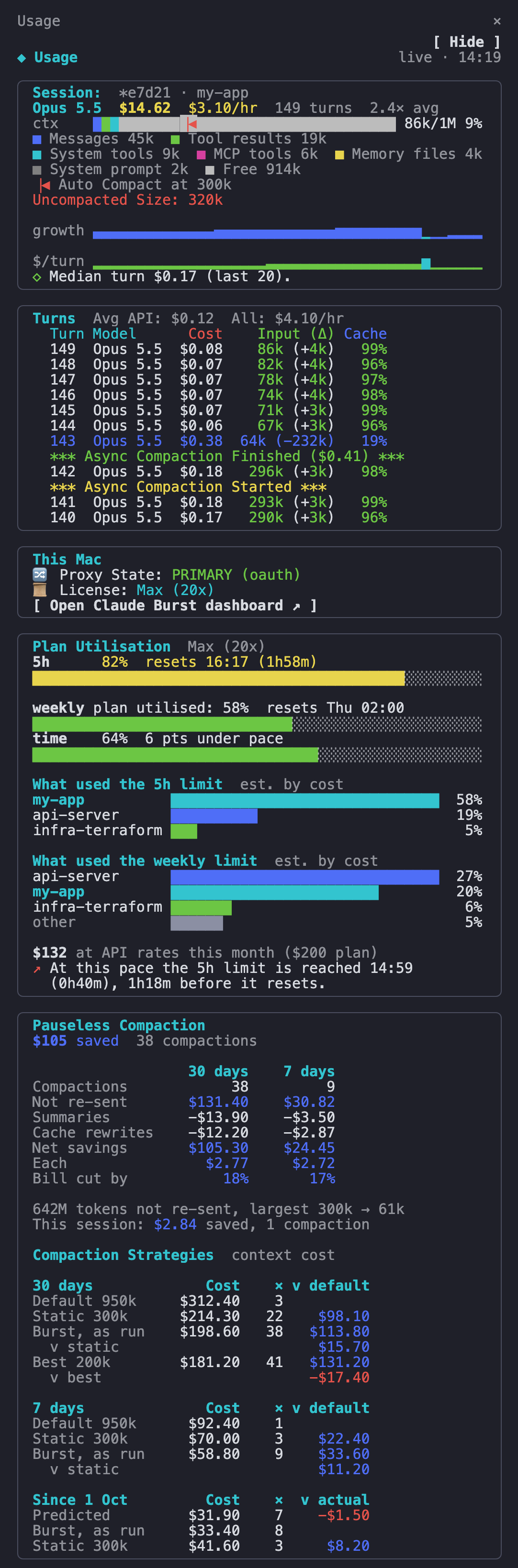
Claude Code Cost Sidebar is a free companion: a live usage panel that Claude Code draws beside each session, so every Ghostty Dock tab shows what that session is costing as it runs.
- This session's cost, $/hour, model and turns
- Context use by part, and how many turns until auto-compact
- A cost per turn, so an expensive turn stands out
- Today, the last 30 days and spend by project
One-line install (Claude Code sets it up and tells you what it changed):
claude "$(curl -fsSL https://raw.githubusercontent.com/andrewbakercloudscale/claude-code-cost-sidebar/main/SETUP_PROMPT.md)"
Claude Burst is a
free local gateway for Claude Code. With it, each row's Compact button
compacts that session in the background (Pauseless Compaction): the summary
swaps in with your next prompt, so you never sit through /compact.
Without Burst, Compact (or Settings → Compaction) offers Set Up Claude Burst, which opens a tab running its one-line setup. Claude Code says what will change and waits for your go-ahead:
claude "$(curl -fsSL https://raw.githubusercontent.com/andrewbakercloudscale/claude-burst/main/SETUP_PROMPT.md)"
With Burst set up, Settings → Compaction has Repair (burst-repair),
Turn Off… (burst-off: back to plain Claude Code) and Turn On
(claude-burst enable). Each runs in a new tab so you see it work and can
type a password if asked.
bash tests/hook-test.sh                          # the Claude Code hook
bash tests/browser-tools-test.sh                 # the browser note, dock-browser tools and $BROWSER
bash tests/restart-test.sh                       # split tabs come back split after a restart
bash tests/viewer-test.sh                        # the file viewer's page (macOS, after a build)
swift test --package-path tests/dock-logic       # sidebar order, groups, cost (after a build)
bash tests/patch-test.sh --latest                # the patch still applies to Ghostty
GitHub Actions runs them all on every push, and the patch check every Monday against the newest Ghostty release.
- A restart or restore checks every session started; one that didn't is opened
once more, and any still missing are listed in
~/.local/state/ghostty-dock/missing-sessions.tsv. The sidebar then shows "N sessions didn't come back" with Reopen (same asghostty-dock-restart --reopen-missing) and Dismiss, and a macOS notification says so. - A restart while the screen is off waits for it to come on: terminals opened with the screen off can't start.
- A tab whose terminal failed to start says why and offers Try Again (same command, folder and environment) or Close Tab; its row reads "Didn't start". Failed tabs try again by themselves when the screen wakes, and a session already running again elsewhere only has the dead tab closed, so it never runs twice.
- Every step, with the screen state, app pid and PATH, is logged in
~/.local/state/ghostty-dock/restart-dock.log.
- The app logs failures (a save, a helper script or
git/ghthat failed or ran over its time limit, a file it could not write) and key events (restores, restarts, moves, reopens, updates). See them in Console.app (searchghosttydock) or withlog show --last 1h --predicate 'subsystem == "consulting.cloudscale.ghosttydock"'. - The scripts log to
~/.local/state/ghostty-dock/(restart-dock.log,update.log,move-to-dock.log). A few minutes after the app starts these are cut to their last 2000 lines, and notes older than a week are removed.
scripts/undo.sh --list           # what it would reopen
scripts/undo.sh                  # do it
Reopens every Claude Code session that the move or restart scripts stopped,
each in its own stock Ghostty app with claude --resume <id> and its original
flags. Running sessions are left alone. It also brings Ghostty back to the Dock
and Cmd-Tab, restores the Finder Quick Actions, and makes ghostty-dock-open
use stock Ghostty again. --sessions-only skips those settings.
Sessions come from ~/.local/state/ghostty-dock/sessions-snapshot.tsv, written
before anything is stopped, and from the scripts' logs. Pass session ids to
reopen specific ones.
./install.sh --uninstall removes everything.
Quit or restart Ghostty Dock while sessions run in it: that ends them. Use
scripts/restart-dock.sh, which waits until they are quiet and resumes them.