本文博客地址:Canvas 实例之绘制时钟.
这里总结下使用 canvas 绘制时钟的步骤。
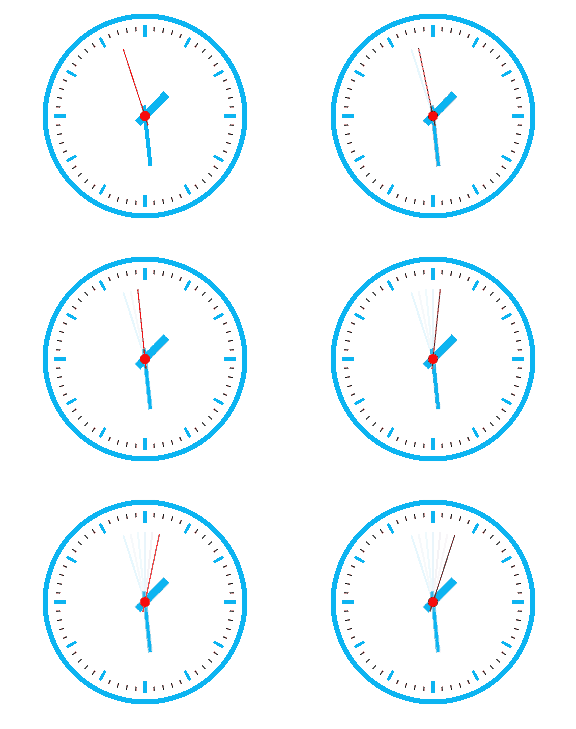
下面来拆分一下绘制步骤:
- 绘制时钟的表框和刻度;
- 绘制时钟的指针;
- 使用定时器动态更新时间。
根据以上步骤可以写出绘制的主要代码:
draw() {
  const drawClock = () => {
    this.ctx.clearRect(-150, -150, 300, 300); // 清除画布
    this.drawCircle(); // 绘制时钟的表框
    this.drawCalibration(); // 绘制时钟的刻度
    this.drawPoints(); // 绘制时钟的指针
    window.requestAnimationFrame(drawClock);
  }
  window.requestAnimationFrame(drawClock); // 添加定时器
}
核心语法
涉及到的核心语法主要有以下几个:
ctx.translate 更改 canvas 的原点,本例设置为多边形的中心点。ctx.rotate 旋转 casvas,本例通过旋转每次只需要绘制固定坐标 [width, 0] 可以有效降低计算坐标的复杂度;ctx.save 保存 canvas 全部状态,由于每次绘制都会进行旋转,每次绘制前保存状态,避免多次旋转后角度错乱导致错位;ctx.restore 还原上次保存的状态,每次绘制结束后进行还原;ctx.beginPath/ctx.closePath 用来关闭路径,避免不同的路径进行交叉;ctx.moveTo/ctx.lineTo 用来绘制一段直线。
下面看一下各个步骤的绘制过程:
绘制圆框
绘制圆用到的方法为 ctx.arc 。
drawCircle() {
  const { ctx } = this;
  ctx.save();
  ctx.beginPath();
  ctx.arc(0, 0, 100, 0, 2 * Math.PI); // 绘制圆形,半径为100,度数为360度
  ctx.lineWidth = 5; // 设置线的宽度
  ctx.strokeStyle = '#00B0F0';
  ctx.closePath();
  ctx.stroke();
  ctx.restore();
}
其中 ctx.lineWidth 用来设定线的宽度。
注意,在绘制图形前后使用 ctx.beginPath,ctx.closePath,避免下次绘制图形时出现连线链接上次绘制的图形。
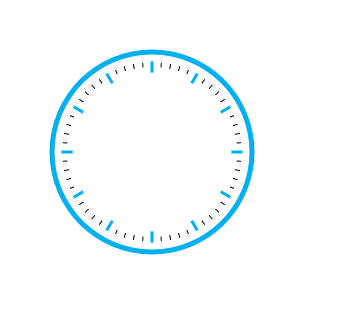
绘制刻度
经过观察,时钟共计12个代表小时的刻度,它们之间又平均分布着4个表示分钟的刻度,出现很有规律,很容易写出如下代码:
drawCalibration() {
  const { ctx } = this;
  ctx.save();
  const rotateStep = Math.PI * 2 / 60; // 共计60个刻度,计算每次绘制需要旋转的弧度
  for (let i = 0; i < 60; i ++) {
    ctx.beginPath()
    if (i % 5 === 0) { // 此次轮到“小时”的刻度
      ctx.moveTo(0, -80);
      ctx.strokeStyle = '#00B0F0';
      ctx.lineWidth = 3;
    } else { // 此次绘制“分钟”的刻度
      ctx.moveTo(0, -85);
      ctx.strokeStyle = '#000';
      ctx.lineWidth = 1;
    }
    ctx.lineTo(0, -90);
    ctx.closePath();
    ctx.stroke();
    ctx.rotate(rotateStep);
  }
  ctx.restore();
}
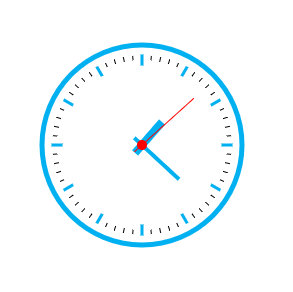
绘制时钟指针
这里的要点是计算每个指针需要旋转的角度:
秒针很容易计算,旋转的角度等于 秒数 / 60。
同样的,分针旋转角度等于 分钟数 / 60 ,但为了过度平滑,每一秒的变化都应该导致分钟的角度变化,最终可以计算出分钟平滑的旋转角度为 分钟数 / 60 + 秒针角度 / 60。
同样的,时针也是如此,可以写出如下的代码:
drawPoints() {
  const now = new Date();
  let hour = now.getHours() % 12;
  let minute = now.getMinutes();
  let second = now.getSeconds();

  // 计算指针旋转角度
  const secondRotate = second * (2 * Math.PI / 60);
  const minuteRotate = minute * (2 * Math.PI / 60) + secondRotate / 60;
  const hourRotate = hour * (2 * Math.PI / 12) + minuteRotate / 12;

  // 绘制指针
  this.drawHourPoint(hourRotate, hour);
  this.drawMinutePoint(minuteRotate, minute);
  this.drawSecondPoint(secondRotate, second);
}
时钟指针有三个,只要计算出旋转的角度,它们的绘制方法和刻度很类似,可以很容易写出以下代码:
// 绘制小时的指针
drawHourPoint(rotate, hour) {
  const { ctx } = this;
  ctx.save();
  ctx.rotate(rotate);
  ctx.beginPath();
  ctx.moveTo(0, 10);
  ctx.lineTo(0, -30);
  ctx.closePath();
  ctx.strokeStyle = '#00B0F0';
  ctx.lineWidth = 8;
  ctx.stroke();
  ctx.restore();
}

// 绘制分钟的指针
drawMinutePoint(rotate, minute) {
  const { ctx } = this;
  ctx.save();
  ctx.rotate(rotate);
  ctx.beginPath();
  ctx.moveTo(0, 10);
  ctx.lineTo(0, -50);
  ctx.closePath();
  ctx.strokeStyle = '#00B0F0';
  ctx.lineWidth = 4;
  ctx.stroke();
  ctx.restore();
}

// 绘制秒的指针
drawSecondPoint(rotate, minute) {
  const { ctx } = this;
  ctx.save();
  ctx.rotate(rotate);
  // 绘制个小圆圈作为装饰
  ctx.beginPath();
  ctx.arc(0, 0, 5, 0, 2 * Math.PI);
  ctx.closePath();
  ctx.fillStyle = 'red';
  ctx.fill();
  // 绘制指针
  ctx.beginPath();
  ctx.moveTo(0, 10);
  ctx.lineTo(0, -70);
  ctx.closePath();
  ctx.strokeStyle = 'red';
  ctx.lineWidth = 1;
  ctx.stroke();
  ctx.restore();
}
使用定时器动态更新时间
这里使用 requestAnimationFrame 而不是使用 setInterval, setInterval 的时效性无法保证。
具体代码
draw() {
  const drawClock = () => {
    this.ctx.clearRect(-150, -150, 300, 300); // 清除画布
    this.drawCircle(); // 绘制时钟的表框
    this.drawCalibration(); // 绘制时钟的刻度
    this.drawPoints(); // 绘制时钟的指针
    window.requestAnimationFrame(drawClock);
  }
  window.requestAnimationFrame(drawClock); // 添加定时器
}
注意,每次绘制前使用 ctx.save() 保存当前状态,绘制完成后使用 ctx.restore() 恢复保存的状态,这样可以避免绘制几次后找不到初始的状态。上面的每个绘制都是如此操作的。
完整代码和演示
点击查看完整代码
演示:
See the Pen
by tcatche (@tcatche)
on CodePen.
<script async src="https://cpwebassets.codepen.io/assets/embed/ei.js"></script>
本文博客地址:Canvas 实例之绘制时钟.
这里总结下使用 canvas 绘制时钟的步骤。
下面来拆分一下绘制步骤:
根据以上步骤可以写出绘制的主要代码:
核心语法
涉及到的核心语法主要有以下几个:
ctx.translate更改 canvas 的原点,本例设置为多边形的中心点。ctx.rotate旋转 casvas,本例通过旋转每次只需要绘制固定坐标[width, 0]可以有效降低计算坐标的复杂度;ctx.save保存 canvas 全部状态,由于每次绘制都会进行旋转,每次绘制前保存状态,避免多次旋转后角度错乱导致错位;ctx.restore还原上次保存的状态,每次绘制结束后进行还原;ctx.beginPath/ctx.closePath用来关闭路径,避免不同的路径进行交叉;ctx.moveTo/ctx.lineTo用来绘制一段直线。下面看一下各个步骤的绘制过程:
绘制圆框
绘制圆用到的方法为
ctx.arc。其中
ctx.lineWidth用来设定线的宽度。注意,在绘制图形前后使用
ctx.beginPath,ctx.closePath,避免下次绘制图形时出现连线链接上次绘制的图形。绘制刻度
经过观察,时钟共计12个代表小时的刻度,它们之间又平均分布着4个表示分钟的刻度,出现很有规律,很容易写出如下代码:
绘制时钟指针
这里的要点是计算每个指针需要旋转的角度:
秒针很容易计算,旋转的角度等于
秒数 / 60。同样的,分针旋转角度等于
分钟数 / 60,但为了过度平滑,每一秒的变化都应该导致分钟的角度变化,最终可以计算出分钟平滑的旋转角度为分钟数 / 60 + 秒针角度 / 60。同样的,时针也是如此,可以写出如下的代码:
时钟指针有三个,只要计算出旋转的角度,它们的绘制方法和刻度很类似,可以很容易写出以下代码:
使用定时器动态更新时间
这里使用
requestAnimationFrame而不是使用setInterval,setInterval的时效性无法保证。具体代码
注意,每次绘制前使用
ctx.save()保存当前状态,绘制完成后使用ctx.restore()恢复保存的状态,这样可以避免绘制几次后找不到初始的状态。上面的每个绘制都是如此操作的。完整代码和演示
点击查看完整代码
演示:
See the Pen by tcatche (@tcatche) on CodePen.
<script async src="https://cpwebassets.codepen.io/assets/embed/ei.js"></script>